# Windows
# Transform .crt to .cer file
This is a short reminder to go from one to another format in windows.
1\. Locate your crt file
2\. double click it, it should open the details of the certificate
[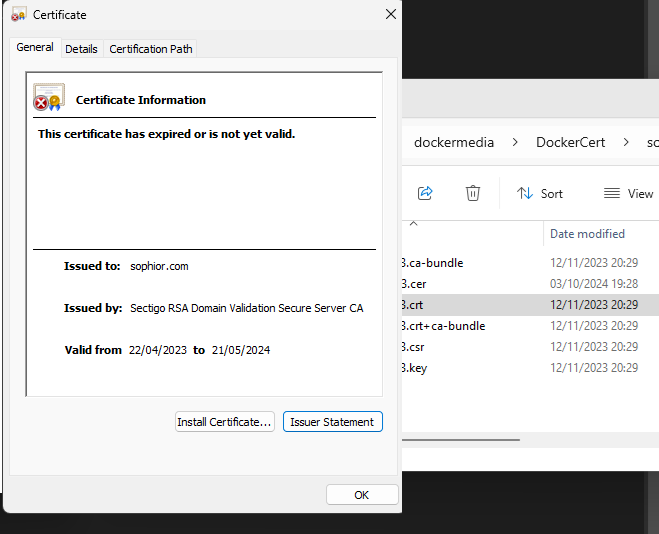](/uploads/images/gallery/2024-10/wFOimage.png)
3\. Go to details, and "Copy to File..." a dialog will prompt which format to generate and where to store it
[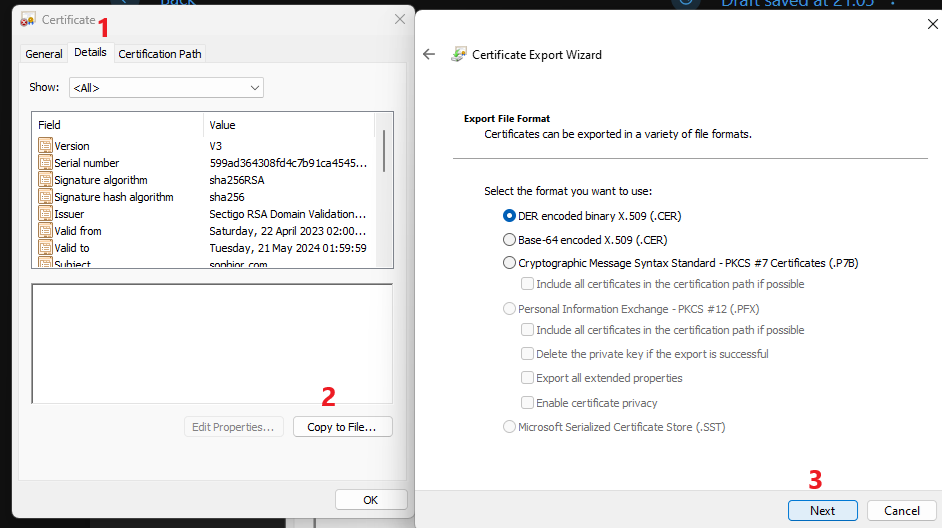](/uploads/images/gallery/2024-10/FLOimage.png)
# RDP file autologin
For our macincloud accounts, it was cumbersome to always manually login without copy-paste ability into the session.
You will need to edit the .rdp file and generate a passsword hash with a program from the internet.
- Either use POwershell:
```
("MySuperSecretPassword!" | ConvertTo-SecureString -AsPlainText -Force) | ConvertFrom-SecureString;
```
- Or Get CryptRDP5
- Get the program [cryptRDP5.exe](https://github.com/jpawlowski/openvpn-als-applications/tree/master/adito-application-rdp-xplatform-embedded/src/windows)
- In the location, open a command prompt to generate your password hash
[](https://wiki.sophior.com/uploads/images/gallery/2024-10/Smyimage.png)
3\. Open the RDP file with notepad and add two lines
```
password 51:b:yourhash
username:s:yourpasword
```
[](https://wiki.sophior.com/uploads/images/gallery/2024-10/qkTimage.png)
4\. Save the file and click it - you now should've bypassed the login
# Recover data on catastrophic loss
For some reason, something went wrong and corrupted my complete USB-controller.
Booting into the BIOS or USB recovery disk, however, the keyboard and mouse worked fine.
Booting into the recovery USB drive ( see [Create installation media](https://support.microsoft.com/en-us/windows/create-installation-media-for-windows-99a58364-8c02-206f-aa6f-40c3b507420d)) I've tried using dism (to install and reinstall drivers) and forcing safe-mode. Which all gave the same result: no control over the desktop. Other creative ways, but this didn't result in success.
The system didn't have an active RDP host - so literally we were unable to get back into it. Luckely it has a 2-drive setup (one fast "windows" drive and a large "storage" drive).
**Recover data**
If you have another PC (to create your USB drive), install [portableapps ](https://portableapps.com/)on it and install the application [FastCopy ](https://portableapps.com/apps/utilities/fcpyportable)on it in a subdirectory.
(you can boot into the recovery console, unplug the USB drive, install portable apps and then plug it in again and "dir" to the application folder)
Then use the console to navigate to the path - in my case only the 64-bit version of the applications worked, and I had to "cd" into the path in order to launch it by typing the name. You then should get the application jumping open and you can copy over your files. USB is working, so you could also attach an USB drive and copy your system over.
[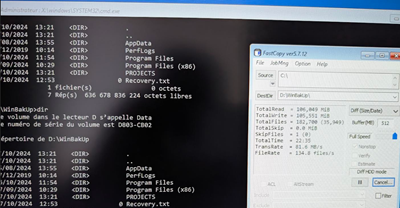](https://wiki.sophior.com/uploads/images/gallery/2024-10/fastcopy.png)
This should allow you to copy over your files.
**Reinstallation of windows**
When you reinstall windows onto an existing installation, there will be a windows.old folder.
According to the documentation it allows to "revert back", but I would rely on it.
**What about the USB failure**
Mouse and keyboard worked fine, until Windows 10 fetched updates and it gave up again.
So we've installed Windows 11 and configured VPN and remote desktop access to avoid this situation.
# Change Remote Desktop port
Regedit
```
HKEY_LOCAL_MACHINE\System\CurrentControlSet\Control\Terminal Server\WinStations\RDP-Tcp
```
[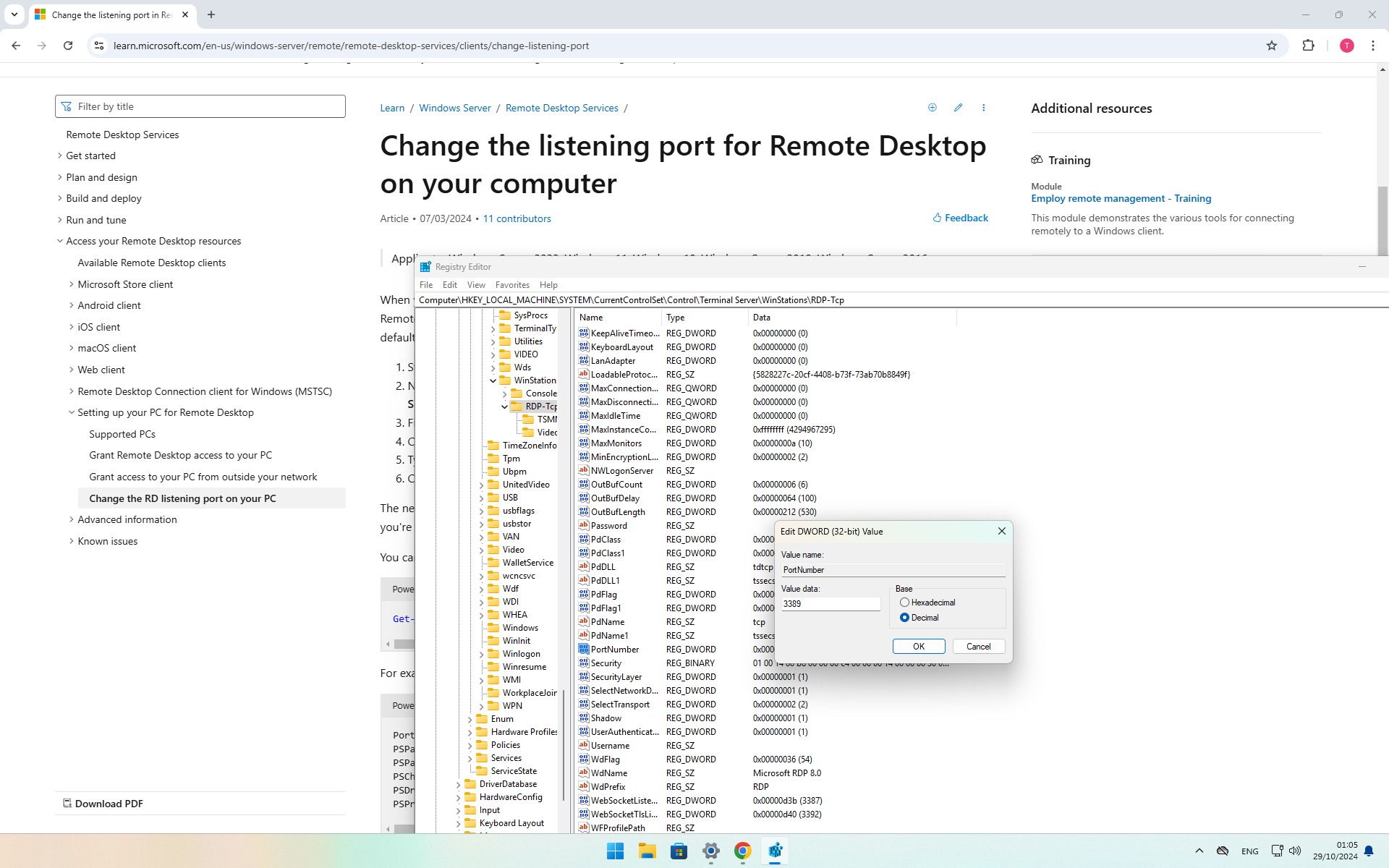](https://wiki.sophior.com/uploads/images/gallery/2024-10/ICZimage.png)
# Passwordless login
Set DevicePasswordLessBuildVersion to 0
```
Computer\HKEY_LOCAL_MACHINE\SOFTWARE\Microsoft\Windows NT\CurrentVersion\PasswordLess\Device
```
run netplwiz
[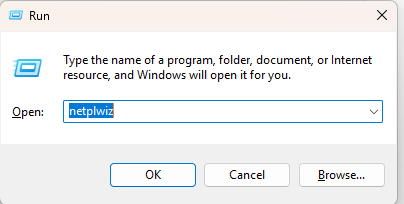](https://wiki.sophior.com/uploads/images/gallery/2024-10/fc654ff9-7620-4b5c-a94e-40b98a3d5b6b.png)
and uncheck
[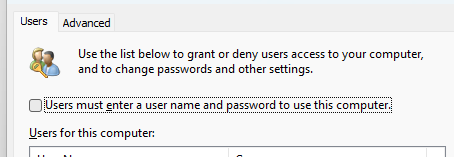](https://wiki.sophior.com/uploads/images/gallery/2024-10/4u4image.png)
# Make windows like it used to be (Windows 11 start menu etc)
Windows 11 feels nice, but the start-menu and context menu integrations always get in the way.
The following app allows to completely set the behaviors to your hand and remove the annoying "features"
1. Install ExplorerPatcher from here [https://github.com/valinet/ExplorerPatcher](https://github.com/valinet/ExplorerPatcher)
2. Install as administrator
3. Start the application by right-clicking the menu bar and selecting "Properties"
[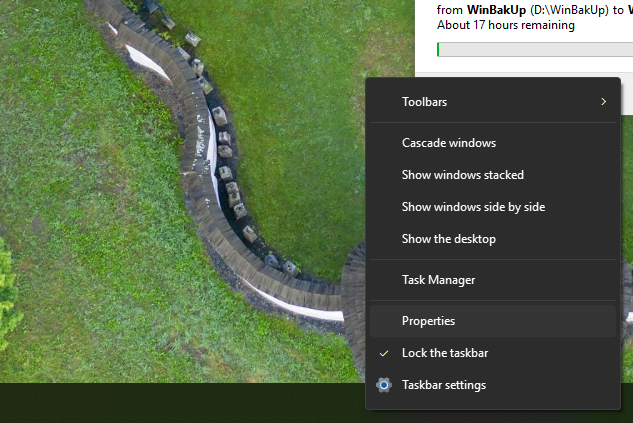](https://wiki.sophior.com/uploads/images/gallery/2024-10/01056664-721a-4e45-a179-ed5df8b6825a.png)
4. Configure as you like
[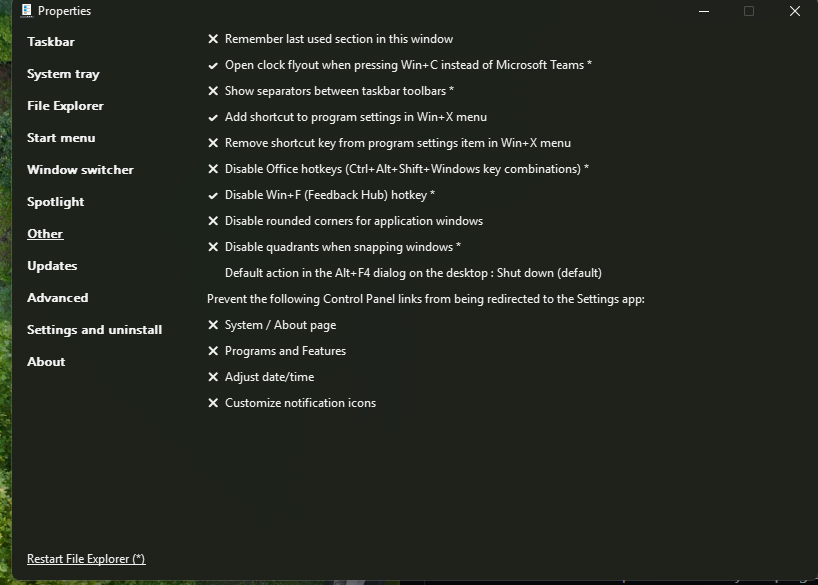](https://wiki.sophior.com/uploads/images/gallery/2024-10/985bca0f-2475-441c-b70a-ff03d22cd8a5.png)
# SMB (fileshare) is slow / capped to 10Mbit
Open powershell as administrator:
```
Set-SmbClientConfiguration -EnableBandwidthThrottling 0 -EnableLargeMtu 1
```
[Read more: ](https://learn.microsoft.com/en-us/troubleshoot/windows-server/networking/slow-smb-file-transfer "Read more")
```
HKEY_LOCAL_MACHINE\SYSTEM\CurrentControlSet\Services\LanmanWorkstation\Parameters
```
EnableSecuritySignature → should be 0
RequireSecuritySignature → should be 0
# Turn off web search in start menu
regedit
```
Computer\HKEY_CURRENT_USER\Software\Microsoft\Windows\CurrentVersion\Search
```
Create DWORD:
- BingSearchEnabled=0
- CortanaConsent=0