Raspberry PI
- Start a script as a service
- Enable Filesharing
- Fix DNS (apt-get doesn't work)
- Enabled dual camera (Raspberry pi 5)
- Access files over HTTP quickly
- Set HTTPS to bypass browser constraints
- stream camera feed
- Fixing blurry 8-50mm Zoom Lens for Raspberry Pi High Quality Camera
- Raspberry PI Zero 2W camera
- Create putty status display (service control)
- Add Fileshare
Start a script as a service
sudo nano /etc/systemd/system/ptcam-app.service
Create an ini file
[Unit]
Description=PanTilt Camera Web App
After=network-online.target
Wants=network-online.target

[Service]
User=sophior
WorkingDirectory=/home/sophior/pt_rpi
ExecStart=/home/sophior/pt_rpi/venv/bin/python -u /home/sophior/pt_rpi/app.py
Restart=always
RestartSec=5

[Install]
WantedBy=multi-user.target
Start
sudo systemctl daemon-reload
sudo systemctl enable ptcam-app.service
sudo systemctl start ptcam-app.service
Check logs
journalctl -u ptcam-app.service -f
Stop/restart
sudo systemctl restart ptcam-app.service
sudo systemctl restart ptcam-headtracker.service
Enable Filesharing
Install samba
sudo apt update
sudo apt install -y samba
Set password
sudo smbpasswd -a sophior
edit config
sudo nano /etc/samba/smb.conf

[pt_rpi]
path = /home/sophior/pt_rpi
browseable = yes
read only = no
guest ok = no
valid users = sophior
force user = sophior
create mask = 0664
directory mask = 0775
Restart Samba
sudo systemctl restart smbd
Fix DNS (apt-get doesn't work)
When apt-get update times out or you can't reach servers that you know are online
sudo rm -f /etc/resolv.conf
echo "nameserver 1.1.1.1" | sudo tee /etc/resolv.conf
echo "nameserver 8.8.8.8" | sudo tee -a /etc/resolv.conf
ping -c 2 deb.debian.org
Enabled dual camera (Raspberry pi 5)
When you can only see one of both cameras:
rpicam-hello --list-cameras
https://docs.arducam.com/Raspberry-Pi-Camera/Pivariety-Camera/Libcamera-User-Guide/#introduction 123 to do:
install_pivariety_pkgs.sh -p libcamera_dev
install_pivariety_pkgs.sh -p libcamera_apps
install_pivareity_pkgs.sh -p kernel_driver
Access files over HTTP quickly
python3 -m http.server 8080
Current folder will now be accessible over http
Set HTTPS to bypass browser constraints
cd ~/pt_rpi
openssl req -x509 -newkey rsa:2048 -nodes \
-keyout ssl.key \
-out ssl.crt \
-days 365 \
-subj "/CN=192.168.178.123"
socketio.run(
app,
host='0.0.0.0',
port=5000,
ssl_context=('ssl.crt', 'ssl.key'),
allow_unsafe_werkzeug=True
)
stream camera feed
Broadcast from Raspberry pi:
rpicam-vid --camera 0 --inline --width 2028 --height 1080 --listen --timeout 0 --profile high --intra 1 -o tcp://0.0.0.0:8888
Receive on PC:
ffplay -fflags nobuffer -flags low_delay -probesize 32 tcp://192.168.178.123:8888
Fixing blurry 8-50mm Zoom Lens for Raspberry Pi High Quality Camera
When you mounted the lense with C-mount, it might be that everything is extremely blurry.
To adjust it, might feel like a daunting task.
The issue is the focal point when you attach the lense too close to the sensor. For this, you have the lock-screw on the C-mount and should not screw in the lense all the way to the end.
Ideally you'd open a video stream and watch it with the near/far focal ring in the middle and the tele/wide ring in the middle.While you adjust the C-mount screw depth.
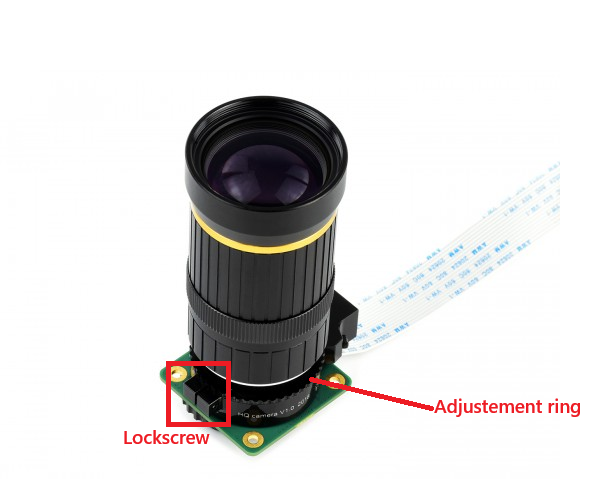
You'd want to reach a point where either focal rings will have impact on sharpness with very tiny mainpulations (1/10th of a mm will be blurry or not blurry).
You could make such a program and then refresh the page after every manipulation to focus the lens.
@app.route('/hq_snapshot')
def hq_snapshot():
    path = "/tmp/hq_snapshot.jpg"

    subprocess.run([
        "rpicam-still",
        "--camera", "0",
        "--nopreview",
        "--timeout", "300",
        "--width", "1920",
        "--height", "1080",
        "-o", path
    ], stdout=subprocess.DEVNULL, stderr=subprocess.DEVNULL)

    return send_file(path, mimetype="image/jpeg")
After you're done, lock the lockscrew.
Now, you should be able to focus with the focal rings, you'd set the tele/wide ring to approximately the object you want to have in focus and adjust the "near/far" until it becomes sharp.
Opeing the shutter (open/close) ring has some effect on sharpness or image bleed. It reduces or increases the amount of light that hits the sensor. In bright shiny days, fully open shutter will create fuzzy overexposed images.
Raspberry PI Zero 2W camera
- Get the imager https://www.raspberrypi.com/software/ and write to sdcard, configure the dialogues
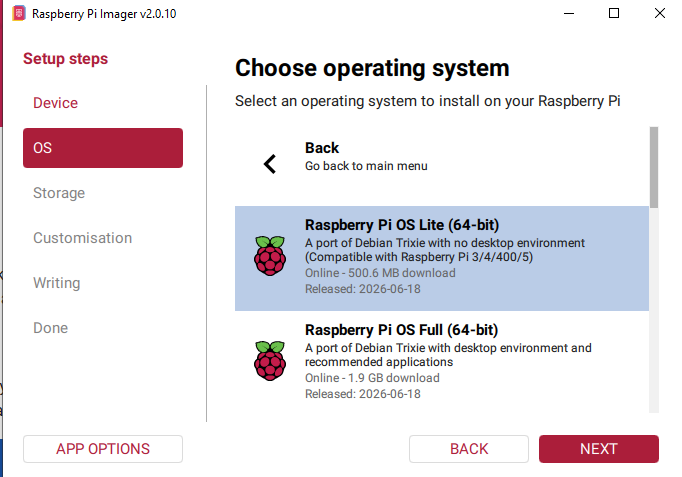
2. Plug in the sdcard, start the raspberry and log in via putty (find IP on router)
-> an USB port might not be powerful enough for heavy operations, so preerably a power outlet
3. Update and install workloads
sudo apt update
sudo apt full-upgrade -y

sudo apt install -y \
  rpicam-apps \
  python3-picamera2 \
  python3-numpy \
  python3-av \
  ffmpeg \
  samba

sudo reboot
Test the camera
rpicam-hello --list-cameras
Create directories
mkdir -p ~/camera ~/videos ~/timelapse
Upload scripts (via powershell)
scp C:\ZeroCameraBackup\record-motion.py xxx@Zero.local:/home/xxx/camera/
scp C:\ZeroCameraBackup\aim-camera.sh xxx@Zero.local:/home/xxx/camera/
scp C:\ZeroCameraBackup\timelapse-camera.sh xxx@Zero.local:/home/xxx/camera/
In putty:
chmod +x ~/camera/record-motion.py
chmod +x ~/camera/aim-camera.sh
chmod +x ~/camera/timelapse-camera.sh
Create Services
sudo nano /etc/systemd/system/motion-camera.service
[Unit]
Description=Motion Detection Camera
After=multi-user.target
Conflicts=aim-camera.service timelapse-camera.service

[Service]
Type=exec
User=tim
WorkingDirectory=/home/tim/camera
ExecStart=/usr/bin/python3 /home/tim/camera/record-motion.py

Restart=on-failure
RestartSec=5

KillSignal=SIGINT
TimeoutStopSec=20

StandardOutput=journal
StandardError=journal

[Install]
WantedBy=multi-user.target
sudo nano /etc/systemd/system/aim-camera.service

[Unit]
Description=Camera UDP Aiming Stream
Wants=network-online.target
After=network-online.target
Conflicts=motion-camera.service timelapse-camera.service

[Service]
Type=exec
User=tim
WorkingDirectory=/home/tim/camera
ExecStart=/home/tim/camera/aim-camera.sh

Restart=on-failure
RestartSec=5

KillSignal=SIGINT
TimeoutStopSec=10

StandardOutput=journal
StandardError=journal

[Install]
WantedBy=multi-user.target
sudo nano /etc/systemd/system/timelapse-camera.service

[Unit]
Description=Camera Timelapse
After=multi-user.target
Conflicts=motion-camera.service aim-camera.service

[Service]
Type=exec
User=tim
WorkingDirectory=/home/tim/camera
ExecStart=/home/tim/camera/timelapse-camera.sh

Restart=on-failure
RestartSec=5

KillSignal=SIGINT
TimeoutStopSec=20

StandardOutput=journal
StandardError=journal

[Install]
WantedBy=multi-user.target
Activate teh services
sudo systemctl daemon-reload
Set one as starting service
sudo systemctl disable --now aim-camera.service
sudo systemctl disable --now timelapse-camera.service

sudo systemctl enable --now motion-camera.service
check
systemctl status motion-camera.service
Create putty status display (service control)
sudo chmod +x /usr/local/bin/camera-status
#!/bin/bash

show_service()
{
    local label="$1"
    local unit="$2"
    local active
    local enabled
    local state

    active="$(systemctl is-active "$unit" 2>/dev/null || true)"
    enabled="$(systemctl is-enabled "$unit" 2>/dev/null || true)"

    if [ "$active" = "active" ]; then
        state="ACTIVATED"
    else
        state="DEACTIVATED"
    fi

    printf "%-20s %-12s boot: %s\n" "$label:" "$state" "$enabled"
}

echo
echo "================ CAMERA STATUS ================"
show_service "Motion detection" "motion-camera.service"
show_service "Aim stream"       "aim-camera.service"
show_service "Timelapse"        "timelapse-camera.service"

echo
echo "Commands:"
echo "  motion-on       motion-off"
echo "  aim-on          aim-off"
echo "  timelapse-on    timelapse-off"
echo "  camera-status"
echo "================================================"
echo
sudo chmod +x /usr/local/bin/camera-status
create the commands
nano ~/.bashrc
Append at the bottom
# Camera service commands
alias motion-on='sudo systemctl start motion-camera.service'
alias motion-off='sudo systemctl stop motion-camera.service'

alias aim-on='sudo systemctl start aim-camera.service'
alias aim-off='sudo systemctl stop aim-camera.service'

alias timelapse-on='sudo systemctl start timelapse-camera.service'
alias timelapse-off='sudo systemctl stop timelapse-camera.service'

alias camera-status='/usr/local/bin/camera-status'

# Show camera status when opening PuTTY/SSH.
if [[ $- == *i* ]]; then
    /usr/local/bin/camera-status
fi
Now apply:
source ~/.bashrc
Add Fileshare
sudo nano /etc/samba/smb.conf
Append at bottom:
[videos]
path = /home/tim/videos
browseable = yes
read only = no
valid users = xxx
create mask = 0664
directory mask = 0775

[timelapse]
path = /home/xxx/timelapse
browseable = yes
read only = no
valid users = tim
create mask = 0664
directory mask = 0775
Set your password
sudo smbpasswd -a xxx
sudo systemctl restart smbd